
WaveAssist
Published on: May 17, 2025
Your step-by-step guide to generating the right GitHub token to manually configure GitZoid, your Pull Request review agent on WaveAssist.

In this guide, we'll walk you through how to generate the right GitHub token to manually configure GitZoid, step by step. Whether you prefer the modern Fine-Grained Token or the Classic Token, we've got you covered.
These tokens are essential for connecting GitZoid to your GitHub repositories so it can review pull requests automatically using AI.
If you prefer or need broader access, classic tokens are another option:
GitZoid Classic Token)repo ✅ (for full access to repositories)write:discussion ✅ (for PR comments)⚠️ Note: Classic tokens give broader access, so use with caution and only if necessary. Fine-grained tokens are generally safer.
Fine-grained tokens give you tighter control over permissions and access. Here's how to set one up:
Visit: https://github.com/settings/personal-access-tokens
GitZoid Access or WaveAssist GitZoidUnder "Repository permissions", enable:
| Permission | Access Level |
|---|---|
| Pull Requests | Read & Write ✅ |
| Contents | Read-only (optional) |
Leave all other permissions as No Access for maximum security.
You can now paste this token into GitZoid on WaveAssist to manually configure and connect your GitHub account securely.
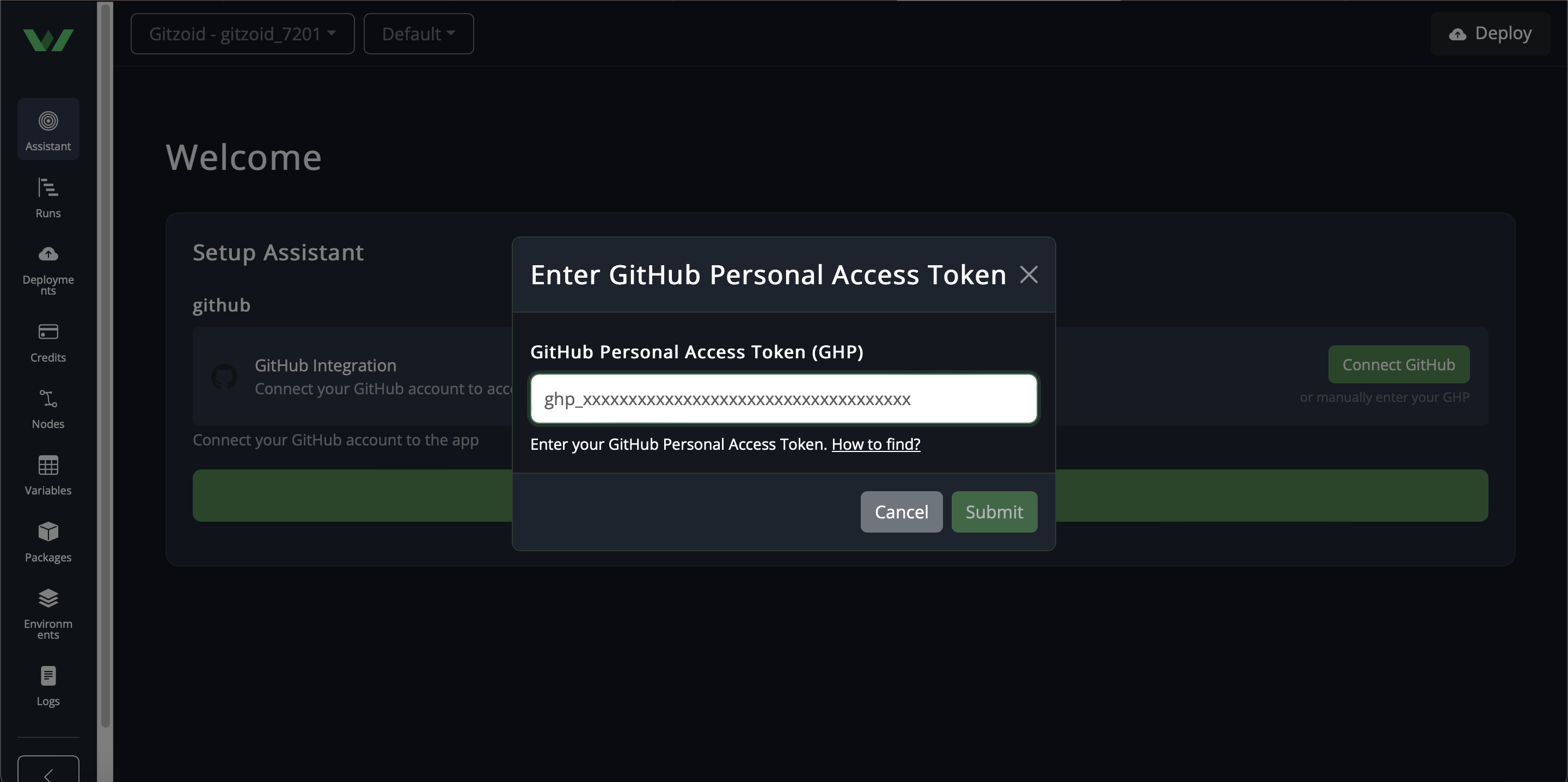
Once your token is ready, here's how to use it:
github_ghp_token pop upGitZoid will now securely fetch your PRs and start reviewing them using AI — no more manual reviews!
Whether you're working on side projects or managing teams, GitZoid helps you:
Start reviewing smarter.
Now that you have your GitHub token, check out our guide on deploying GitZoid:
👉 How to Deploy GitZoid on WaveAssist
Need help? Reach us at support@waveassist.io
Happy reviewing! 🎉
Deploy in one click. $2 free credits, no credit card needed.
Try GitZoid FreeBrowse All AssistantsDeploy this assistant in one click and let it run on autopilot while you focus on what matters. Get started with $2 in free credits, no credit card needed.

